


What Is COUNT Rows In Google Sheets?
Count rows in Google sheets, as the name suggests, helps users count the number of rows in Google spreadsheets. We can count the rows in Google sheets and Excel using COUNT and COUNTIF functions in Google sheets. Remember, we can count all the rows or any row with any value, no value or a specific value using the COUNTIF function in Google sheets.
For example, consider the below table showing sample and values in columns A and B, respectively.

Now, let us learn how to count rows with detailed steps.
To begin with, we need to select the cell B5 and enter the COUNTIF Function formula in Google sheets, =COUNTIF(A1:B4,”7″) to count the number of cells having the data “7”. Press Enter key.

We will be able to see the result in cell B5, as shown in the below image.
In this article, let us learn how to count the number of rows with detailed examples.
Use this COUNT Rows In Google Sheets Template to follow along with the examples in this article.
Download Excel TemplateKey Takeaways
- Count rows in Google sheets, is a method to count rows in Google spreadsheets using the COUNT function formula.
- The COUNT function category is grouped under the Math functions in both Excel and Google sheets.
- The formula of COUNT function in Google sheets is =COUNT(value1,[value2],…) where value1 and value2 shows the cells to be counted using the formula.
- Using COUNTA function category, we can find the values of all the cells in Google sheets.
- Similarly, we can use COUNTIF function, to count the cells with a condition.
How To Count Rows In Google Sheets?
We can count the number of rows in Google sheets with two methods. They are:
- Select the COUNTIF function under the Insert tab
- Manually enter the COUNTIF function
Method #1 – Select the COUNTIF function under the Insert tab
We can count the number of rows using the COUNTIF function under the Insert tab
The steps are:
Step 1: To begin with, we need to insert the data in the spreadsheet. Next, we need to select the cell where we want to find the result.
Step 2: Next, select the Insert tab. Click on the Function option in the dropdown list.
Step 3: Then, click on the Math function. Then, select the COUNTIF function formula in Google sheets.

Step 4: Now, insert the arguments with correct logical operator. Press Enter key.
We will be able to see the result in the active cell, as shown in the below image.
Likewise, we can use the COUNTIF function in Google sheets to count the number of rows in Google sheets.
Method #2 – Manually enter the COUNTIF function
We can count the number of rows in Google sheets by manually entering the COUNTIF function.
The steps are:
Step 1: To begin with, we need to insert the data in the spreadsheet. Next, we need to select the cell where we want to find the result.
Step 2: Next, enter =COUN. Choose the COUNTIF function formula in the list.

Step 3: Alternatively, we can also type =COUNTIF directly in the cell.
Step 4: Now, insert the arguments with correthe ct logical operator. Press Enter key.
We will be able to see the result in the active cell, as shown in the below image.
Likewise, we can use the COUNTIF function in Google sheets to count the number of rows in Google sheets.
Examples
Now, let us learn how to count the rows in the Google sheets with detailed examples.
Example #1 – Count Rows With Any Value
For example, consider the below table showing name and marks in columns A and B, respectively.
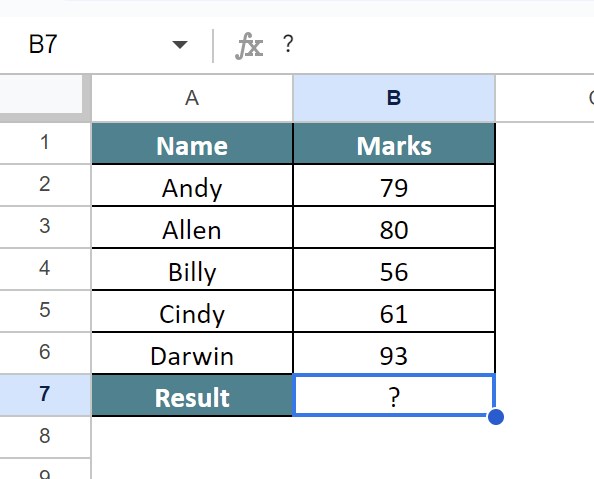
Now, let us learn how to count rows with any value with detailed steps.
The steps are:
Step 1: To begin with, we need to enter the data in the spreadsheet. In this example, the data is available in the cell range A1:B7. Next, we need to select the cell where we want to find the result. In this example, we need to select the cell B7.
Step 2: Next, enter the COUNTIF Function formula in Google sheets with “<>”.
So, the complete formula is =COUNTIF(A1:B6,”<>”), as shown in the below image.

Step 3: Press Enter key.
We will be able to see the result in cell B7, as shown in the below image.

Likewise, we can count the rows with any value in Google sheets.
Example #2 – Count Rows With Specific Value
For example, consider the below table showing subject and marks in columns A and B, respectively.

Now, let us learn how to count rows with specific value, “71” with detailed steps.
The steps are:
Step 1: To begin with, we need to enter the data in the spreadsheet. In this example, the data is available in the cell range A1:B7. Next, we need to select the cell where we want to find the result. In this example, we need to select the cell B7.
Step 2: Next, enter the COUNTIF Function formula in Google sheets with “71”.
So, the complete formula is =COUNTIF(A1:B6,”71″), as shown in the below image.

Step 3: Press Enter key.
We will be able to see the result in cell B7, as shown in the below image.

Likewise, we can count the rows with any value in Google sheets.
Example #3 Count Rows With No Value
For example, consider the below table showing product and data in columns A and B, respectively.
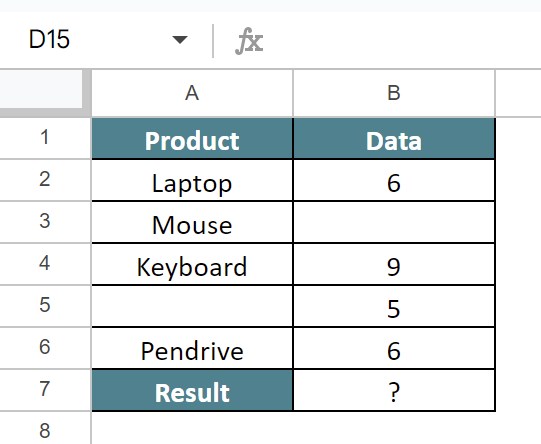
Now, let us learn how to count rows in Google sheets with no value with detailed steps.
The steps are:
Step 1: To begin with, we need to enter the data in the spreadsheet. In this example, the data is available in the cell range A1:B7. Next, we need to select the cell where we want to find the result. In this example, we need to select the cell B7.
Step 2: Next, enter the COUNTBLANK Function formula in Google sheets.
So, the complete formula is =COUNTBLANK(A1:B6), as shown in the below image.

Step 3: Press Enter key.
We will be able to see the result in cell B7, as shown in the below image.

Likewise, we can count the rows with no value.
Example #4 – Count All of The Rows In The Range
For example, consider the below table showing location and sample in columns A and B, respectively.
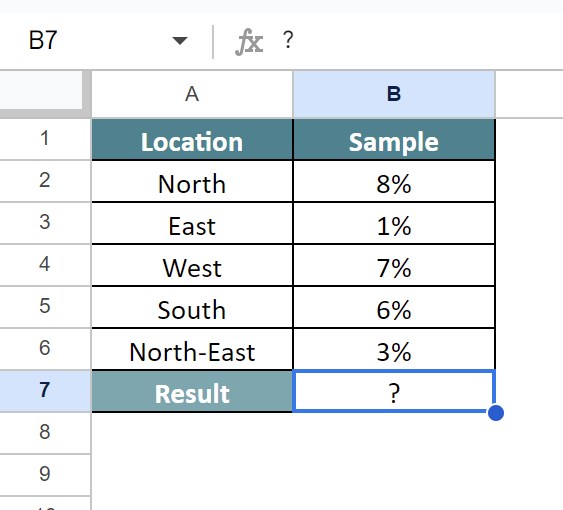
Now, let us learn how to count rows with all value with detailed steps.
The steps are:
Step 1: To begin with, we need to enter the data in the spreadsheet. In this example, the data is available in the cell range A1:B7. Next, we need to select the cell where we want to find the result. In this example, we need to select the cell B7.
Step 2: Next, enter the COUNTA Function formula in Google sheets.
So, the complete formula is =COUNTA(A1:B6), as shown in the below image.

Step 3: Press Enter key.
We will be able to see the result in cell B7, as shown in the below image.

Likewise, we can count the rows with all value in Google sheets.
Important Things To Note
- Count rows in Google sheets helps users count the number of rows in the spreadsheets.
- We can count the cells using multiple COUNT functions available under the Math function category in Google Sheets.
- Some of the COUNT function formulas are COUNTA, COUNTIF, COUNTBLANK and COUNTIFS.
- Remember, the COUNTBLANK function counts all the blank cells (empty cells or cells without values) and COUNTIFS is a function which counts cells with multiple conditions.
- All the listed functions are inbuilt and can be used without any additional formulas in both Excel and Google sheets.
Frequently Asked Questions (FAQs)
For example, consider the below table showing data and values in columns A and B, respectively.
Now, let us learn how to count rows in Google sheets with detailed steps.
To begin with, we need to select the cell B5 and enter the COUNTIF Function formula in Google sheets, =COUNTIF(A1:B4,”7″). Press Enter key.
We will be able to see the result in cell B5, as shown in the below image.
Likewise, we can count the rows in Google sheets.
The difference between COUNTA and COUNTIF function in Google sheets are:
• COUNTA function in Google sheets counts all cells in the data with all values
• COUNTIF function in Google sheets counts cells with a particular condition
COUNTIF function may not work in Google sheets if the condition specified in the formula argument is not mentioned in double quotations. Similarly, we may get an error if the logical operators are not included correctly in the COUNTIF function in Google sheets formula.
Use this COUNT Rows In Google Sheets Template to follow along with the examples in this article.
Download Excel TemplateRecommended Articles
Continue with these related resources when you want the next practical step in this topic.
- MATH Functions In Google Sheets
- SUM Google Sheets Function
- AUTOSUM In Google Sheets
- COUNT FUNCTION IN GOOGLE SHEETS
- AVERAGE In Google Sheets
Explore the full Google Sheets Math Functions guide or browse Google Sheets Resources.