


What Is Insert a Function in Excel?
Insert a Function in excel is a powerful tool that allows users to enhance and automate their data analysis process. With this function, professionals can perform a multitude of complex and advanced calculations efficiently. The feature provides an extensive range of functions such as mathematical, statistical, financial, logical, and text operations that cater to various business needs. By using the Insert Function option in Excel, professionals can locate specific functions based on their requirements or search for them by category or name. This capability saves precious time and ensures accurate results for tasks ranging from simple arithmetic calculations to sophisticated statistical analysis
In the following example, we will explore how to use Excel functions to calculate the maximum of numbers using the Insert Function Dialog Box.
Use this Insert a Function In Excel Template to follow along with the examples in this article.
Download Excel TemplateTo begin, we need to calculate the desired output in cell A5. It’s as simple as following these steps:

Start by selecting the fx button, as shown in the image below. This will open the Insert Function window. From the list, choose the MAX excel function and click the OK button. In the Functional Argument window, enter the values that you want to calculate.
After entering each value, please click the OK button. Subsequently, the corresponding value will be displayed in cell A5, mirroring the example image provided.

Key Takeaways
- The Insert function, although not an inherent feature of Excel, was previously accessible through the “Insert” tab in earlier versions of the software. However, in more recent iterations, this functionality has been relocated to the “Formulas” tab, conveniently accessible by clicking on the “fx” button.
- It is recommended to employ the INSERT FUNCTION option solely for the purpose of enhancing our understanding. Once we have acquired proficiency in working with formulas, we can confidently input them directly into the desired cell.
- By utilizing the ‘More Functions’ button, we can effortlessly insert a function from the Autosum drop-down menu. Alternatively, a swift method to insert a function in Excel is by simply pressing ‘Shift + F3’.
How To Use Excel Insert Function? (With Steps)
Method #1 – Using Equal To Sign
We are well acquainted with all the formulas in Excel, commencing with the equal (=) sign. Therefore, let us now use by initiating the insertion of formulas in Excel, commencing with the equal sign.
#1 – Calculation Without Inbuilt Formulas
In the following example, we will explore and apply the concept of the Insert Excel function. Let’s calculate the sum without an inbuilt formula in the given scenario.

To calculate the desired output in cell A2, please follow these steps:
Step 1: Choose the cell where you want to enter the formula and calculate the result. For this example, let’s use cell A2. Enter the formula exactly as shown below:
=1+2.
Step 2: After entering each value in the previous step, press the Enter key. As a result, you will see the corresponding value displayed in cell A2, just like in the provided image.

#2 – Calculation Without Inbuilt Formulas: Based On Cell Values
Let’s dive into the world of Excel functions and explore how to calculate sums without relying on inbuilt formulas based on cell values. In this example, we’ll focus on the Insert Excel function and its application.
To get started, we need to calculate the desired output in cell A5. It’s as simple as following these steps:

Step 1: Select the cell where you want to enter the formula and calculate the result. In our case, we’ll use cell A5. Now, enter the formula by referencing cells exactly as shown below:
=A2+B2.
Step 2: Once you’ve entered each value in the previous step, hit the Enter key. You’ll see the corresponding value displayed in cell A5, just like in the provided image.

Method #2 – Using Insert Function Dialog Box
The Insert Function dialog box in Excel allows professionals to find and apply complex formulas to their worksheets easily. By clicking on the fx button located next to the formula bar, users can open the dialog box, which provides a comprehensive list of functions categorized by their purpose.

Examples
Example #1 – Excel Built-in Formulas
Let’s delve into the example of Excel functions and discover how to calculate average with built-in formulas based on values. In this example, we will focus on the Insert Excel function and its application.

To begin, we need to calculate the desired output in cell A5. It’s as simple as following these steps:
Step 1: Select the cell where you want to enter the formula and calculate the result. In our case, we will use cell A5. Now, enter =av and then select AVERAGE excel function from the drop-down list.

Step 2: Enter the formula =AVERAGE(A2:D2).

Step 3: Once the value is entered in the previous step, press the Enter key. You will see the corresponding value displayed in cell A5, just like in the provided image.

Example #2 – Using Insert Function Dialog Box
In the following example of Excel functions, explore how to calculate the product of numbers using the Insert function Dialog Box.
To get started, we need to calculate the desired output in cell A5. It’s as simple as following these steps:

Step 1: Select the fx button as shown in the below image. The Insert Function window pops up; select the PRODUCT excel function from the list. Click the OK button.

Step 2: Enter the values in the Functional Argument window.

Step 3: Once each value is entered, hit the OK button. You’ll see the corresponding value displayed in cell A5, just like in the provided image.

Important Things To Note
- An alternative approach to accessing the INSERT FUNCTION feature is available through the FORMULA tab.
- Furthermore, we can conveniently locate the INSERT FUNCTION feature by selecting the “More Functions” option within the AutoSum drop-down menu.
- To expedite the process of accessing the INSERT FUNCTION feature in Excel, we can employ the keyboard shortcut “Shift + F3.”
Frequently Asked Questions (FAQs)
The keyboard shortcut “SHIFT + F3” can be used to open the Insert Function dialog window. Additionally, pressing the F4 key allows you to repeat the previous command or action, if applicable. These shortcuts are valuable tools that enhance efficiency and productivity in various tasks.
Consider the below example.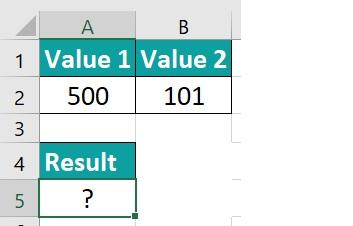
Select the “SHIFT + F3” shortcut keys; this will open up the Insert Function window. From the list of functions, choose the EVEN function and click on the OK button. In the Functional Argument window, enter the values that you want to calculate.
The result will be displayed in cell A5, just like in the example image provided.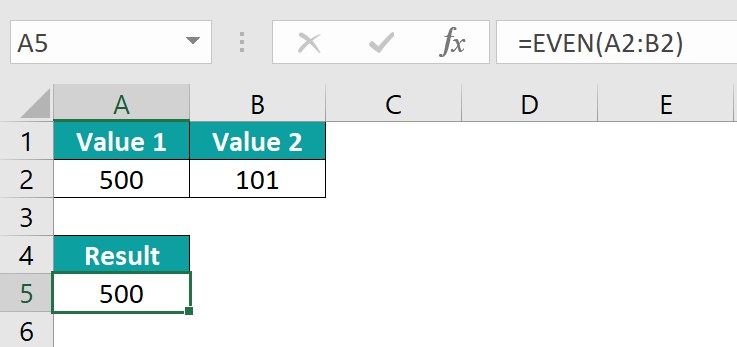
The purpose of the insert function in Excel is to add new rows or columns to a spreadsheet. This allows for more data to be entered and maintains the integrity of the existing information by shifting it accordingly. The insert function can come in handy when you need to expand your dataset, especially when dealing with large amounts of data. Whether you want to insert a single row or column, multiple rows or columns, or an entire worksheet, Excel provides various options to suit your needs.
Some of the most frequently used functions include mathematical operations like addition, subtraction, multiplication, and division. Users can also access statistical functions like average, standard deviation, and count. More advanced functions, such as those related to financial analysis, are also available. These include calculating present value, future value, and interest rates using formulas like NPV or IRR. Additionally, users can leverage logical functions such as IF statements to create conditional outcomes based on specific criteria.
Use this Insert a Function In Excel Template to follow along with the examples in this article.
Download Excel TemplateRecommended Articles
Continue with these related resources when you want the next practical step in this topic.
- Basic Excel Formulas
- Write Formula In Excel
- Excel Function
- Show Formula In Excel
- Formula Auditing in Excel
Explore the full Excel Formula Basics guide or browse Excel Resources.